I believe many friends, like me, use the MySQL integrated in XAMPP because it’s extremely convenient to operate. However, it doesn’t support UTF-8 by default, so we need to manually modify the configuration file my.ini.
Step 1: Open XAMPP Control Panel and access the configuration file
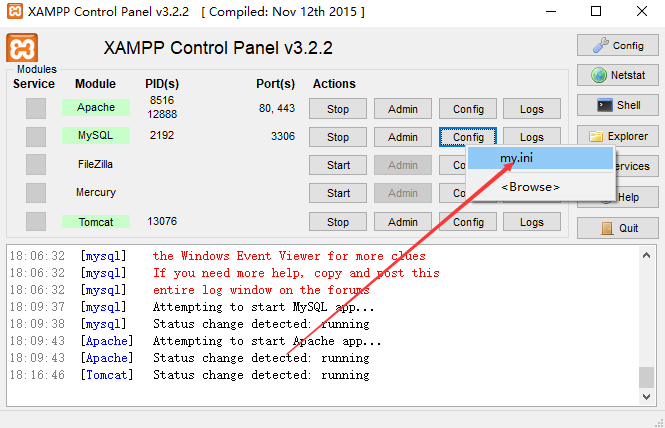
Open the XAMPP control panel and click the “Config” button next to MySQL to open the configuration file.
Step 2: Add the following four lines to the configuration file
default_character_set = utf8

character-set-server = utf8
collation-server = utf8_general_ci

default_character_set = utf8
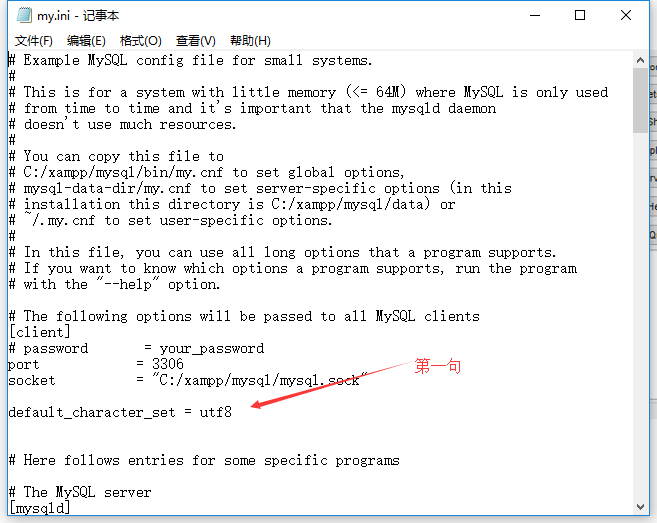
Line 1:
default_character_set = utf8
(Add this line under the [mysqld] section or at the end of the file)
Lines 2 and 3:
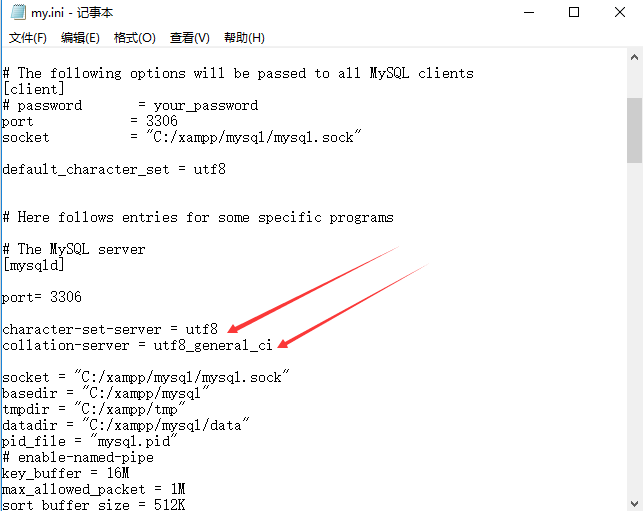
character-set-server = utf8
collation-server = utf8_general_ci
(Add these two lines under the [mysqld] section)
Line 4:
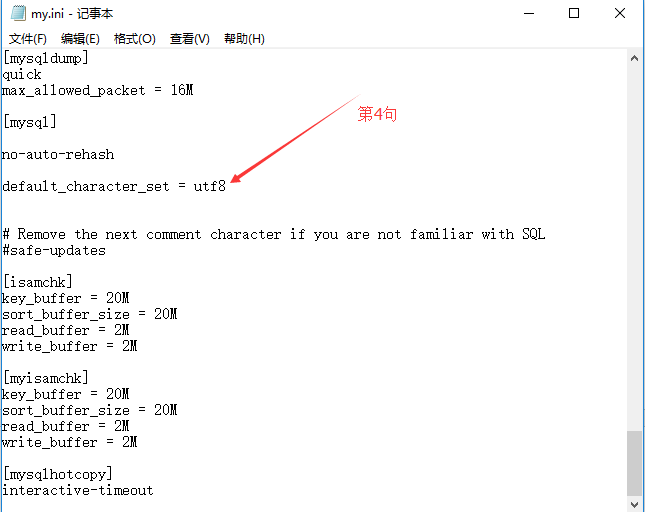
default_character_set = utf8
(Add this line again under the [mysql] section or at the end of the file)
Step 3: Restart MySQL
Restart the MySQL service. When creating a new database later, make sure to select the correct collation (e.g., utf8_general_ci).
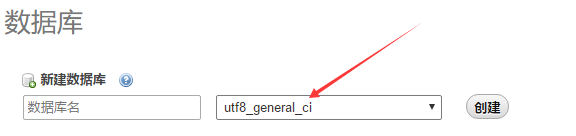
Ubuntu Server MySQL Configuration (for Chinese garbled issues)
In Ubuntu, the configuration file path and content differ slightly.
Configuration file path:
The main configuration file is located at /etc/mysql/mysql.conf.d/mysqld.cnf (or /etc/mysql/my.cnf depending on the version).

Modify the configuration file with Vim:
sudo vim /etc/mysql/mysql.conf.d/mysqld.cnf
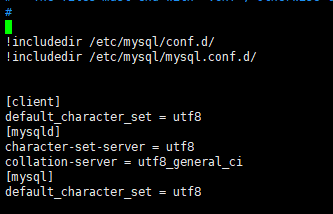
Add the following code at the end of the file:
[client]
default_character_set = utf8
[mysqld]
character-set-server = utf8
collation-server = utf8_general_ci
[mysql]
default_character_set = utf8
Restart MySQL:
sudo /etc/init.d/mysql restart
Note: The path and commands may vary slightly based on your system version. Ensure you verify the correct configuration file location and syntax.