前言
現在越來越多的手機要使用到深度學習了,比如一些圖像分類,目標檢測,風格遷移等等,之前都是把數據提交給服務器完成的。但是提交給服務器有幾點不好,首先是速度問題,圖片上傳到服務器需要時間,客戶端接收結果也需要時間,這一來回就佔用了一大半的時間,會使得整體的預測速度都變慢了,再且現在手機的性能不斷提高,足以做深度學習的預測。其二是隱私問題,如果只是在本地預測,那麼用戶根本就不用上傳圖片,安全性也大大提高了。現在的手機深度學習會計有很多,比如百度的paddle-mobile、小米的MACNE、騰訊的NCNN、谷歌的TensorFlow lite,而我們在本章使用的是百度的paddle-mobile。
PaddleMobile的GitHub地址:https://github.com/PaddlePaddle/paddle-mobile
編譯paddle-mobile庫
想要使用paddle-mobile,就要編譯Android能夠使用的CPP庫,在這一部分中,我們介紹兩種編譯Android的paddle-mobile庫,分別是使用Docker編譯paddle-mobile庫、使用Ubuntu交叉編譯paddle-mobile庫。
在Android項目中有使用過CPP的讀者都知道,想要讓Java代碼能夠調用CPP代碼,那麼CPP的函數明明就要按照一定的規範:Java_包名_類名_對應的Java的方法名,目前官方提供了5個可以給Java調用的函數,該代碼在:paddle-mobile/src/jni/paddle_mobile_jni.cpp,如果想要讓這些函數能夠在自己的包名下的類調用,就要修改CPP的函數名稱修改如下:
修改之前的load函數:
JNIEXPORT jboolean JNICALL Java_com_baidu_paddle_PML_load(JNIEnv *env,
                                                          jclass thiz,
                                                          jstring modelPath) {
  ANDROIDLOGI("load invoked");
  bool optimize = true;
  return getPaddleMobileInstance()->Load(jstring2cppstring(env, modelPath),
                                         optimize);
}
筆者項目的包名爲com.example.paddlemobile1,在這個包下有一個ImageRecognition.java的程序來對應這個CPP程序,那麼修改load函數如下:
JNIEXPORT jboolean JNICALL Java_com_example_paddlemobile1_ImageRecognition_load(JNIEnv *env,
                                                          jclass thiz,
                                                          jstring modelPath) {
  ANDROIDLOGI("load invoked");
  bool optimize = true;
  return getPaddleMobileInstance()->Load(jstring2cppstring(env, modelPath),
                                         optimize);
}
如果讀者覺得這樣比較麻煩的話,可以不用修改,只要創建一個com.baidu.paddle包,在這個包下創建一個PML.java的Java程序來對應這個CPP程序。
使用Docker編譯paddle-mobile庫
爲了方便操作,以下的操作都是在root用戶的執行的:
1、安裝Docker,以下是在Ubuntu下安裝的的方式,只要一條命令就可以了:
apt-get install docker.io
2、克隆paddle-mobile源碼:
git clone https://github.com/PaddlePaddle/paddle-mobile.git
3、進入到paddle-mobile根目錄下編譯docker鏡像:
cd paddle-mobile
# 編譯生成進行,編譯時間可能要很長
docker build -t paddle-mobile:dev - < Dockerfile
編譯完成可以使用docker images命令查看是否已經生成進行:
root@test:/home/test# docker images
REPOSITORY                          TAG                 IMAGE ID            CREATED             SIZE
paddle-mobile                       dev                 fffbd8779c68        20 hours ago        3.76 GB
4、運行鏡像並進入到容器裏面,當前目錄還是在paddle-mobile根目錄下:
docker run -it -v $PWD:/paddle-mobile paddle-mobile:dev
5、在容器裏面執行以下兩條命令:
root@fc6f7e9ebdf1:/# cd paddle-mobile/
root@fc6f7e9ebdf1:/paddle-mobile# cmake -DCMAKE_TOOLCHAIN_FILE=tools/toolchains/arm-android-neon.cmake
6、(可選)可以使用命令ccmake .配置一些信息,比如可以設置NET僅支持googlenet,這樣便於得到的paddle-mobile庫會更小一些,修改完成之後,使用c命令保存,使用g退出。筆者一般跳過這個步驟。
                                                    Page 1 of 1
 CMAKE_ASM_FLAGS
 CMAKE_ASM_FLAGS_DEBUG
 CMAKE_ASM_FLAGS_RELEASE
 CMAKE_BUILD_TYPE
 CMAKE_INSTALL_PREFIX             /usr/local
 CMAKE_TOOLCHAIN_FILE             /paddle-mobile/tools/toolchains/arm-android-neon.cmake
 CPU                              ON
 DEBUGING                         ON
 FPGA                             OFF
 LOG_PROFILE                      ON
 MALI_GPU                         OFF
 NET                              defult
 USE_EXCEPTION                    ON
 USE_OPENMP                       ON
7、最後執行一下make就可以了,到這一步就完成了paddle-mobile的編譯。
root@fc6f7e9ebdf1:/paddle-mobile# make
8、使用exit命令退出容器,回到Ubuntu本地上。
root@fc6f7e9ebdf1:/paddle-mobile# exit
9、在paddle-mobile根目錄下,有一個build目錄,我們編譯好的paddle-mobile庫就在這裏。
root@test:/home/test/paddle-mobile/build# ls
libpaddle-mobile.so
libpaddle-mobile.so就是我們在開發Android項目的時候使用到的paddle-mobile庫。
使用Ubuntu交叉編譯paddle-mobile庫
1、首先要下載和解壓NDK。
wget https://dl.google.com/android/repository/android-ndk-r17b-linux-x86_64.zip
unzip android-ndk-r17b-linux-x86_64.zip
2、設置NDK環境變量,目錄是NDK的解壓目錄。
export NDK_ROOT="/home/test/paddlepaddle/android-ndk-r17b"
設置好之後,可以使用以下的命令查看配置情況。
root@test:/home/test/paddlepaddle# echo $NDK_ROOT
/home/test/paddlepaddle/android-ndk-r17b
3、安裝cmake,需要安裝較高版本的,筆者的cmake版本是3.11.2。
- 下載cmake源碼
wget https://cmake.org/files/v3.11/cmake-3.11.2.tar.gz
- 解壓cmake源碼
tar -zxvf cmake-3.11.2.tar.gz
- 進入到cmake源碼根目錄,並執行
bootstrap。
cd cmake-3.11.2
./bootstrap
- 最後執行以下兩條命令開始安裝cmake。
make
make install
- 安裝完成之後,可以使用
cmake --version是否安裝成功.
root@test:/home/test/paddlepaddle# cmake --version
cmake version 3.11.2

CMake suite maintained and supported by Kitware (kitware.com/cmake).
4、克隆paddle-mobile源碼。
git clone https://github.com/PaddlePaddle/paddle-mobile.git
5、進入到paddle-mobile的tools目錄下,執行編譯。
cd paddle-mobile/tools/
sh build.sh android
(可選)如果想編譯針對某一個網絡編譯更小的庫時,可以在命令後面加上相應的參數,如下:
sh build.sh android googlenet
6、最後會在paddle-mobile/build/release/arm-v7a/build目錄下生產paddle-mobile庫。
root@test:/home/test/paddlepaddle/paddle-mobile/build/release/arm-v7a/build# ls
libpaddle-mobile.so
libpaddle-mobile.so就是我們在開發Android項目的時候使用到的paddle-mobile庫。
創建Android項目
首先使用Android Studio創建一個普通的Android項目,包名爲com.example.paddlemobile1,我們可以不用選擇CPP的支持,因爲我們已經編譯好了CPP。之後按照以下的步驟開始執行:
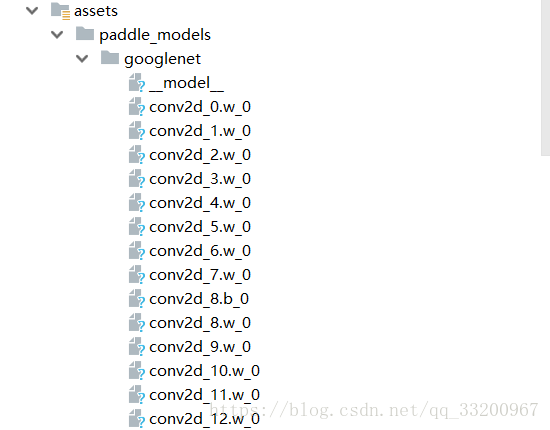
1、在main目錄下創建l兩個assets/paddle_models文件夾,這個文件夾我們將會使用它來存放PaddleFluid訓練好的預測模型,官方也提供了一些訓練好的模型和預測圖像,可以在這裏下載。預測有兩種,一種是合併的模型,另一種是非合併的模型,在本項目中,我們使用的是非合併的模型,下面就是筆者使用的一個googlenet神經網絡訓練102中花卉數據集得到的預測模型,可以到這裏下載筆者訓練好的模型。
PS: PaddleMobile支持量化模型,使用模型量化可以把模型縮小至原來的四分之一,比如筆者的模型是20多M,量化之後就是5M多了。這個量化是把模型的float32經過量化變成int8,所以模型會是原來的四分之一,當然精度也有一點點損失,但影響不大。
cd paddle-mobile/tools/quantification/
cmake .
make
# 命令格式./quantify (0:seperated. 1:combined ) (輸入路徑) (輸出路徑)
./quantify 0 googlenet/ ./googlenet_min/
如果使用量化模型,那加載模型的接口也有修改一下,使用以下的接口加載模型:
public static native boolean loadQualified(String modelDir);
2、在main目錄下創建一個jniLibs文件夾,這個文件夾是存放CPP編譯庫的,在本項目中就存放上一部分編譯的libpaddle-mobile.so,這裏可以下載筆者編譯好的模型。

3、在Android項目的配置文件夾中加上權限聲明,因爲我們要使用到讀取相冊和使用相機,所以加上以下的權限聲明:
<uses-permission android:name="android.permission.CAMERA" />
<uses-permission android:name="android.permission.WRITE_EXTERNAL_STORAGE" />
<uses-permission android:name="android.permission.READ_EXTERNAL_STORAGE" />
4、修改activity_main.xml界面,修改成如下:
<?xml version="1.0" encoding="utf-8"?>
<RelativeLayout xmlns:android="http://schemas.android.com/apk/res/android"
    xmlns:app="http://schemas.android.com/apk/res-auto"
    xmlns:tools="http://schemas.android.com/tools"
    android:layout_width="match_parent"
    android:layout_height="match_parent"
    tools:context=".MainActivity">

    <LinearLayout
        android:id="@+id/btn_ll"
        android:layout_alignParentBottom="true"
        android:layout_width="match_parent"
        android:layout_height="wrap_content"
        android:orientation="horizontal">

        <Button
            android:id="@+id/use_photo"
            android:layout_weight="1"
            android:layout_width="0dp"
            android:layout_height="wrap_content"
            android:text="相冊" />

        <Button
            android:id="@+id/start_camera"
            android:layout_weight="1"
            android:layout_width="0dp"
            android:layout_height="wrap_content"
            android:text="拍照" />
    </LinearLayout>

    <TextView
        android:layout_above="@id/btn_ll"
        android:id="@+id/result_text"
        android:textSize="16sp"
        android:layout_width="match_parent"
        android:hint="預測結果會在這裏顯示"
        android:layout_height="100dp" />

    <ImageView
        android:layout_alignParentTop="true"
        android:layout_above="@id/result_text"
        android:id="@+id/show_image"
        android:layout_width="match_parent"
        android:layout_height="match_parent" />

</RelativeLayout>
5、創建一個ImageRecognition.java的Java程序,這個程序的作用就是調用paddle-mobile/src/jni/paddle_mobile_jni.cpp的函數,對應的是裏面的函數。目前支持一下幾個接口。
package com.example.paddlemobile1;

public class ImageRecognition {
    // set thread num
    public static native void setThread(int threadCount);

    //Load seperated parameters
    public static native boolean load(String modelDir);

    // load qualified model
    public static native boolean loadQualified(String modelDir);

    // Load combined parameters
    public static native boolean loadCombined(String modelPath, String paramPath);

    // load qualified model
    public static native boolean loadCombinedQualified(String modelPath, String paramPath);

    // object detection
    public static native float[] predictImage(float[] buf, int[]ddims);

    // predict yuv image
    public static native float[] predictYuv(byte[] buf, int imgWidth, int imgHeight, int[] ddims, float[]meanValues);

    // clear model
    public static native void clear();
}
6、然後編寫一個PhotoUtil.java的工具類。
package com.example.paddlemobile1;

import android.app.Activity;
import android.content.Context;
import android.content.Intent;
import android.database.Cursor;
import android.graphics.Bitmap;
import android.graphics.BitmapFactory;
import android.net.Uri;
import android.os.Build;
import android.provider.MediaStore;
import android.support.v4.content.FileProvider;
import android.util.Log;

import java.io.File;
import java.io.IOException;
import java.util.Arrays;


public class PhotoUtil {

    // start camera
    public static Uri start_camera(Activity activity, int requestCode) {
        Uri imageUri;
        // save image in cache path
        File outputImage = new File(activity.getExternalCacheDir(), "out_image.jpg");
        try {
            if (outputImage.exists()) {
                outputImage.delete();
            }
            outputImage.createNewFile();
        } catch (IOException e) {
            e.printStackTrace();
        }
        if (Build.VERSION.SDK_INT >= 24) {
            // compatible with Android 7.0 or over
            imageUri = FileProvider.getUriForFile(activity,
                    "com.example.paddlemobile1", outputImage);
        } else {
            imageUri = Uri.fromFile(outputImage);
        }
        // set system camera Action
        Intent intent = new Intent(MediaStore.ACTION_IMAGE_CAPTURE);
        // set save photo path
        intent.putExtra(MediaStore.EXTRA_OUTPUT, imageUri);
        // set photo quality, min is 0, max is 1
        intent.putExtra(MediaStore.EXTRA_VIDEO_QUALITY, 0);
        activity.startActivityForResult(intent, requestCode);
        return imageUri;
    }

    // get picture in photo
    public static void use_photo(Activity activity, int requestCode){
        Intent intent = new Intent(Intent.ACTION_PICK);
        intent.setType("image/*");
        activity.startActivityForResult(intent, requestCode);
    }

    // get photo from Uri
    public static String get_path_from_URI(Context context, Uri uri) {
        String result;
        Cursor cursor = context.getContentResolver().query(uri, null, null, null, null);
        if (cursor == null) {
            result = uri.getPath();
        } else {
            cursor.moveToFirst();
            int idx = cursor.getColumnIndex(MediaStore.Images.ImageColumns.DATA);
            result = cursor.getString(idx);
            cursor.close();
        }
        return result;
    }

    // Compress the image to the size of the training image,and change RGB
    public static float[] getScaledMatrix(Bitmap bitmap, int desWidth,
                                   int desHeight) {
        float[] dataBuf = new float[3 * desWidth * desHeight];
        int rIndex;
        int gIndex;
        int bIndex;
        int[] pixels = new int[desWidth * desHeight];
        Bitmap bm = Bitmap.createScaledBitmap(bitmap, desWidth, desHeight, false);
        bm.getPixels(pixels, 0, desWidth, 0, 0, desWidth, desHeight);
        int j = 0;
        int k = 0;
        for (int i = 0; i < pixels.length; i++) {
            int clr = pixels[i];
            j = i / desHeight;
            k = i % desWidth;
            rIndex = j * desWidth + k;
            gIndex = rIndex + desHeight * desWidth;
            bIndex = gIndex + desHeight * desWidth;
            dataBuf[rIndex] = (float) ((clr & 0x00ff0000) >> 16) - 148;
            dataBuf[gIndex] = (float) ((clr & 0x0000ff00) >> 8) - 148;
            dataBuf[bIndex] = (float) ((clr & 0x000000ff)) - 148;

        }
        if (bm.isRecycled()) {
            bm.recycle();
        }
        return dataBuf;
    }

    // compress picture
    public static Bitmap getScaleBitmap(String filePath) {
        BitmapFactory.Options opt = new BitmapFactory.Options();
        opt.inJustDecodeBounds = true;
        BitmapFactory.decodeFile(filePath, opt);

        int bmpWidth = opt.outWidth;
        int bmpHeight = opt.outHeight;

        int maxSize = 500;

        // compress picture with inSampleSize
        opt.inSampleSize = 1;
        while (true) {
            if (bmpWidth / opt.inSampleSize < maxSize || bmpHeight / opt.inSampleSize < maxSize) {
                break;
            }
            opt.inSampleSize *= 2;
        }
        opt.inJustDecodeBounds = false;
        return BitmapFactory.decodeFile(filePath, opt);
    }
}
start_camera()方法是啓動相機並返回圖片的URI。use_photo()方法是打開相冊,獲取到的圖片URI在回到函數中獲取。get_path_from_URI()方法是把圖片的URI轉換成絕對路徑。getScaledMatrix()方法是把圖片壓縮成跟訓練時的大小,並轉換成預測需要用的數據格式浮點數組。getScaleBitmap()方法是對圖片進行等比例壓縮,減少內存的支出。
7、最後修改MainActivity.java,修改如下:
package com.example.paddlemobile1;

import android.Manifest;
import android.annotation.SuppressLint;
import android.app.Activity;
import android.content.Context;
import android.content.Intent;
import android.content.pm.PackageManager;
import android.graphics.Bitmap;
import android.net.Uri;
import android.os.Bundle;
import android.os.Environment;
import android.support.annotation.NonNull;
import android.support.annotation.Nullable;
import android.support.v4.app.ActivityCompat;
import android.support.v4.content.ContextCompat;
import android.support.v7.app.AppCompatActivity;
import android.util.Log;
import android.view.View;
import android.widget.Button;
import android.widget.ImageView;
import android.widget.TextView;
import android.widget.Toast;

import com.bumptech.glide.Glide;
import com.bumptech.glide.load.engine.DiskCacheStrategy;
import com.bumptech.glide.request.RequestOptions;

import java.io.File;
import java.io.FileOutputStream;
import java.io.InputStream;
import java.util.ArrayList;
import java.util.Arrays;
import java.util.List;

public class MainActivity extends AppCompatActivity {
    private static final String TAG = MainActivity.class.getName();
    private static final int USE_PHOTO = 1001;
    private static final int START_CAMERA = 1002;
    private Uri image_uri;
    private ImageView show_image;
    private TextView result_text;
    private String assets_path = "paddle_models";
    private boolean load_result = false;
    private int[] ddims = {1, 3, 224, 224};

    private static final String[] PADDLE_MODEL = {
            "lenet",
            "alexnet",
            "vgg16",
            "resnet",
            "googlenet",
            "mobilenet_v1",
            "mobilenet_v2",
            "inception_v1",
            "inception_v2",
            "squeezenet"
    };

    // load paddle-mobile api
    static {
        try {
            System.loadLibrary("paddle-mobile");

        } catch (SecurityException e) {
            e.printStackTrace();

        } catch (UnsatisfiedLinkError e) {
            e.printStackTrace();

        } catch (NullPointerException e) {
            e.printStackTrace();

        }

    }


    @Override
    protected void onCreate(Bundle savedInstanceState) {
        super.onCreate(savedInstanceState);
        setContentView(R.layout.activity_main);

        init();
    }

    // initialize view
    private void init() {
        request_permissions();
        show_image = (ImageView) findViewById(R.id.show_image);
        result_text = (TextView) findViewById(R.id.result_text);
        Button use_photo = (Button) findViewById(R.id.use_photo);
        Button start_photo = (Button) findViewById(R.id.start_camera);

        // use photo click
        use_photo.setOnClickListener(new View.OnClickListener() {
            @Override
            public void onClick(View view) {
                PhotoUtil.use_photo(MainActivity.this, USE_PHOTO);
//                load_model();
            }
        });

        // start camera click
        start_photo.setOnClickListener(new View.OnClickListener() {
            @Override
            public void onClick(View view) {
                image_uri = PhotoUtil.start_camera(MainActivity.this, START_CAMERA);
            }
        });

        // copy file from assets to sdcard
        String sdcard_path = Environment.getExternalStorageDirectory()
                + File.separator + assets_path;
        copy_file_from_asset(this, assets_path, sdcard_path);

        // load model
        load_model();
    }

    // load infer model
    private void load_model() {
        String model_path = Environment.getExternalStorageDirectory()
                + File.separator + assets_path + File.separator + PADDLE_MODEL[4];
        Log.d(TAG, model_path);
        load_result = ImageRecognition.load(model_path);
        if (load_result) {
            Log.d(TAG, "model load success");
        } else {
            Log.d(TAG, "model load fail");
        }
    }

    // clear infer model
    private void clear_model() {
        ImageRecognition.clear();
        Log.d(TAG, "model is clear");
    }

    // copy file from asset to sdcard
    public void copy_file_from_asset(Context context, String oldPath, String newPath) {
        try {
            String[] fileNames = context.getAssets().list(oldPath);
            if (fileNames.length > 0) {
                // directory
                File file = new File(newPath);
                if (!file.exists()) {
                    file.mkdirs();
                }
                // copy recursivelyC
                for (String fileName : fileNames) {
                    copy_file_from_asset(context, oldPath + "/" + fileName, newPath + "/" + fileName);
                }
                Log.d(TAG, "copy files finish");
            } else {
                // file
                File file = new File(newPath);
                // if file exists will never copy
                if (file.exists()) {
                    return;
                }

                // copy file to new path
                InputStream is = context.getAssets().open(oldPath);
                FileOutputStream fos = new FileOutputStream(file);
                byte[] buffer = new byte[1024];
                int byteCount;
                while ((byteCount = is.read(buffer)) != -1) {
                    fos.write(buffer, 0, byteCount);
                }
                fos.flush();
                is.close();
                fos.close();
            }
        } catch (Exception e) {
            e.printStackTrace();
        }
    }

    @Override
    protected void onActivityResult(int requestCode, int resultCode, @Nullable Intent data) {
        String image_path;
        RequestOptions options = new RequestOptions().skipMemoryCache(true).diskCacheStrategy(DiskCacheStrategy.NONE);
        if (resultCode == Activity.RESULT_OK) {
            switch (requestCode) {
                case USE_PHOTO:
                    if (data == null) {
                        Log.w(TAG, "user photo data is null");
                        return;
                    }
                    image_uri = data.getData();
                    Glide.with(MainActivity.this).load(image_uri).apply(options).into(show_image);
                    // get image path from uri
                    image_path = PhotoUtil.get_path_from_URI(MainActivity.this, image_uri);
                    // show result
                    result_text.setText(image_path);
                    // predict image
                    predict_image(PhotoUtil.get_path_from_URI(MainActivity.this, image_uri));
                    break;
                case START_CAMERA:
                    // show photo
                    Glide.with(MainActivity.this).load(image_uri).apply(options).into(show_image);
                    // get image path from uri
                    image_path = PhotoUtil.get_path_from_URI(MainActivity.this, image_uri);
                    // show result
                    result_text.setText(image_path);
                    // predict image
                    predict_image(PhotoUtil.get_path_from_URI(MainActivity.this, image_uri));
                    break;
            }
        }
    }

    @SuppressLint("SetTextI18n")
    private void predict_image(String image_path) {
        // picture to float array
        Bitmap bmp = PhotoUtil.getScaleBitmap(image_path);
        float[] inputData = PhotoUtil.getScaledMatrix(bmp, ddims[2], ddims[3]);
        try {
            long start = System.currentTimeMillis();
            // get predict result
            float[] result = ImageRecognition.predictImage(inputData, ddims);
            Log.d(TAG, "origin predict result:" + Arrays.toString(result));
            long end = System.currentTimeMillis();
            long time = end - start;
            Log.d("result length", String.valueOf(result.length));
            // show predict result and time
            int r = get_max_result(result);
            String show_text = "result:" + r + "\nprobability:" + result[r] + "\ntime:" + time + "ms";
            result_text.setText(show_text);
        } catch (Exception e) {
            e.printStackTrace();
        }
    }

    private int get_max_result(float[] result) {
        float probability = result[0];
        int r = 0;
        for (int i = 0; i < result.length; i++) {
            if (probability < result[i]) {
                probability = result[i];
                r = i;
            }
        }
        return r;
    }

    // request permissions
    private void request_permissions() {

        List<String> permissionList = new ArrayList<>();
        if (ContextCompat.checkSelfPermission(this, Manifest.permission.CAMERA) != PackageManager.PERMISSION_GRANTED) {
            permissionList.add(Manifest.permission.CAMERA);
        }

        if (ContextCompat.checkSelfPermission(this, Manifest.permission.WRITE_EXTERNAL_STORAGE) != PackageManager.PERMISSION_GRANTED) {
            permissionList.add(Manifest.permission.WRITE_EXTERNAL_STORAGE);
        }

        if (ContextCompat.checkSelfPermission(this, Manifest.permission.READ_EXTERNAL_STORAGE) != PackageManager.PERMISSION_GRANTED) {
            permissionList.add(Manifest.permission.READ_EXTERNAL_STORAGE);
        }

        // if list is not empty will request permissions
        if (!permissionList.isEmpty()) {
            ActivityCompat.requestPermissions(this, permissionList.toArray(new String[permissionList.size()]), 1);
        }
    }

    @Override
    public void onRequestPermissionsResult(int requestCode, @NonNull String[] permissions, @NonNull int[] grantResults) {
        super.onRequestPermissionsResult(requestCode, permissions, grantResults);
        switch (requestCode) {
            case 1:
                if (grantResults.length > 0) {
                    for (int i = 0; i < grantResults.length; i++) {

                        int grantResult = grantResults[i];
                        if (grantResult == PackageManager.PERMISSION_DENIED) {
                            String s = permissions[i];
                            Toast.makeText(this, s + " permission was denied", Toast.LENGTH_SHORT).show();
                        }
                    }
                }
                break;
        }
    }

    @Override
    protected void onDestroy() {
        // clear model before destroy app
        clear_model();
        super.onDestroy();
    }
}
load_model()方法是加載預測模型的。clear_model()方法是清空預測模型的。copy_file_from_asset()方法是把預測模型複製到內存卡上。predict_image()方法是預測圖片的。get_max_result()方法是獲取概率最大的預測結果。request_permissions()方法是動態請求權限的。
因爲使用到圖像加載框架Glide,所以要在build.gradle加入以下的引用。
implementation 'com.github.bumptech.glide:glide:4.3.1'
8、最後運行項目,選擇圖片預測會得到以下的效果:
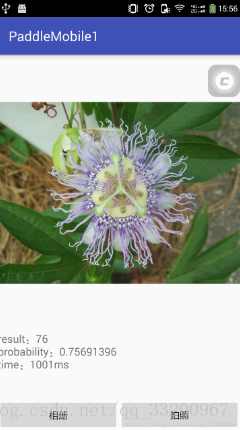
源碼下載: 上面已經提供了全部代碼,爲了方便讀者使用,這個提供了整個項目的下載。
參考資料
- https://github.com/PaddlePaddle/paddle-mobile