Introduction
After TensorFlow 2, the saved model format has changed. Models built using the Keras API are saved in H5 format by default, whereas previous models were in PB format. Converting TensorFlow 2’s H5 format models to TFLite format is very straightforward. This tutorial introduces how to train a classification model using TensorFlow 2’s Keras API and deploy it to Android devices using TensorFlow Lite.
Tutorial Source Code: https://github.com/yeyupiaoling/ClassificationForAndroid/tree/master/TFLiteClassification
Training and Converting the Model
The following code uses Keras with TensorFlow 2 to build a MobileNetV2 model and train it on a custom dataset. This tutorial focuses on deploying the classification model on Android, so the training part is briefly introduced with incomplete code. After training, we’ll obtain a mobilenet_v2.h5 model.
import os
import tensorflow as tf
import reader
import config as cfg

# Get the model
input_shape = (cfg.IMAGE_SIZE, cfg.IMAGE_SIZE, cfg.IMAGE_CHANNEL)
model = tf.keras.Sequential([
    tf.keras.applications.MobileNetV2(input_shape=input_shape, include_top=False, pooling='max'),
    tf.keras.layers.Dense(units=cfg.CLASS_DIM, activation='softmax')
])
model.summary()

# Get training data
train_data = reader.train_reader(data_list_path=cfg.TRAIN_LIST_PATH, batch_size=cfg.BATCH_SIZE)

# Define training parameters
model.compile(
    optimizer=tf.keras.optimizers.RMSprop(),
    loss=tf.keras.losses.SparseCategoricalCrossentropy(),
    metrics=[tf.keras.metrics.SparseCategoricalAccuracy()]
)

# Start training
model.fit(train_data, epochs=cfg.EPOCH_SUM, workers=4)

# Save the H5 model
if not os.path.exists(os.path.dirname(cfg.H5_MODEL_PATH)):
    os.makedirs(os.path.dirname(cfg.H5_MODEL_PATH))
model.save(filepath=cfg.H5_MODEL_PATH)
print('saved h5 model!')
Once we have the mobilenet_v2.h5 model, we need to convert it to TFLite format. Starting from TensorFlow 2, this conversion is simple with just a few lines of code, resulting in a mobilenet_v2.tflite model.
import tensorflow as tf
import config as cfg

# Load the model
model = tf.keras.models.load_model(cfg.H5_MODEL_PATH)

# Generate an unquantized TFLite model
converter = tf.lite.TFLiteConverter.from_keras_model(model)
tflite_model = converter.convert()
open(cfg.TFLITE_MODEL_FILE, 'wb').write(tflite_model)
print('saved tflite model!')
If the saved model is in TF format (e.g., saved using save_format='tf'), use the following conversion method:
import tensorflow as tf

# If saving in TF format
model = tf.keras.applications.MobileNetV2(input_shape=(224, 224, 3))
model.save(filepath='mobilenet_v2', save_format='tf')

# Convert TF model to TFLite
converter = tf.lite.TFLiteConverter.from_saved_model('mobilenet_v2')
tflite_model = converter.convert()
open("mobilenet_v2.tflite", "wb").write(tflite_model)
To obtain the input/output layer names and shapes for deployment to Android, use the following code:
import tensorflow as tf

model_path = 'models/mobilenet_v2.tflite'

interpreter = tf.lite.Interpreter(model_path=model_path)
interpreter.allocate_tensors()

# Get input and output tensors
input_details = interpreter.get_input_details()
output_details = interpreter.get_output_details()

print(input_details)
print(output_details)
Deploying to Android Devices
First, import the following three libraries in build.gradle (omit tensorflow-lite-gpu if GPU acceleration isn’t needed):
implementation 'org.tensorflow:tensorflow-lite:2.3.0'
implementation 'org.tensorflow:tensorflow-lite-gpu:2.3.0'
implementation 'org.tensorflow:tensorflow-lite-support:0.1.0-rc1'
Add the following code under the android tag in build.gradle to prevent model compression during APK packaging:
aaptOptions {
    noCompress "tflite"
}
Copy the converted prediction model to the app/src/main/assets directory, along with the category labels (each line corresponds to a label name).
TensorFlow Lite Utility Class
Create a TFLiteClassificationUtil utility class to handle model loading and prediction. All TensorFlow Lite operations are implemented here. For example:
private static final float[] IMAGE_MEAN = new float[]{128.0f, 128.0f, 128.0f};
private static final float[] IMAGE_STD = new float[]{128.0f, 128.0f, 128.0f};
private static final int NUM_THREADS = 4;

public TFLiteClassificationUtil(String modelPath) throws Exception {
    File file = new File(modelPath);
    if (!file.exists()) {
        throw new Exception("model file is not exists!");
    }

    try {
        Interpreter.Options options = new Interpreter.Options();
        options.setNumThreads(NUM_THREADS); // Multi-threaded prediction

        // Use Android's NNAPI or GPU acceleration
        NnApiDelegate delegate = new NnApiDelegate();
        options.addDelegate(delegate);

        tflite = new Interpreter(file, options);

        // Get input/output layer information
        int[] imageShape = tflite.getInputTensor(tflite.getInputIndex("input_1")).shape();
        DataType imageDataType = tflite.getInputTensor(tflite.getInputIndex("input_1")).dataType();
        inputImageBuffer = new TensorImage(imageDataType);

        int[] probabilityShape = tflite.getOutputTensor(tflite.getOutputIndex("Identity")).shape();
        DataType probabilityDataType = tflite.getOutputTensor(tflite.getOutputIndex("Identity")).dataType();
        outputProbabilityBuffer = TensorBuffer.createFixedSize(probabilityShape, probabilityDataType);

        // Add image preprocessing operations
        imageProcessor = new ImageProcessor.Builder()
                .add(new ResizeOp(imageShape[1], imageShape[2], ResizeOp.ResizeMethod.NEAREST_NEIGHBOR))
                .add(new NormalizeOp(IMAGE_MEAN, IMAGE_STD))
                .build();
    } catch (Exception e) {
        e.printStackTrace();
        throw new Exception("load model fail!");
    }
}
To support both image paths and Bitmap formats, add overloaded methods:
public int predictImage(String image_path) throws Exception {
    if (!new File(image_path).exists()) {
        throw new Exception("image file is not exists!");
    }
    FileInputStream fis = new FileInputStream(image_path);
    Bitmap bitmap = BitmapFactory.decodeStream(fis);
    int result = predictImage(bitmap);
    if (bitmap.isRecycled()) {
        bitmap.recycle();
    }
    return result;
}

public int predictImage(Bitmap bitmap) throws Exception {
    return predict(bitmap);
}
The predict method executes the actual inference:
private int predict(Bitmap bmp) throws Exception {
    inputImageBuffer = loadImage(bmp);

    try {
        tflite.run(inputImageBuffer.getBuffer(), outputProbabilityBuffer.getBuffer().rewind());
    } catch (Exception e) {
        throw new Exception("predict image fail! log:" + e);
    }

    float[] results = outputProbabilityBuffer.getFloatArray();
    Log.d(TAG, Arrays.toString(results));
    return getMaxResult(results);
}

public static int getMaxResult(float[] result) {
    float probability = 0;
    int r = 0;
    for (int i = 0; i < result.length; i++) {
        if (probability < result[i]) {
            probability = result[i];
            r = i;
        }
    }
    return r;
}
Image Selection for Prediction
The layout file activity_main.xml includes an ImageView and buttons for selecting images:
<?xml version="1.0" encoding="utf-8"?>
<RelativeLayout xmlns:android="http://schemas.android.com/apk/res/android"
    xmlns:app="http://schemas.android.com/apk/res-auto"
    xmlns:tools="http://schemas.android.com/tools"
    android:layout_width="match_parent"
    android:layout_height="match_parent"
    android:orientation="vertical"
    tools:context=".MainActivity">

    <ImageView
        android:id="@+id/image_view"
        android:layout_width="match_parent"
        android:layout_height="400dp" />

    <TextView
        android:id="@+id/result_text"
        android:layout_width="match_parent"
        android:layout_height="wrap_content"
        android:layout_below="@id/image_view"
        android:text="识别结果"
        android:textSize="16sp" />


    <LinearLayout
        android:layout_width="match_parent"
        android:layout_height="wrap_content"
        android:layout_alignParentBottom="true"
        android:orientation="horizontal">

        <Button
            android:id="@+id/select_img_btn"
            android:layout_width="0dp"
            android:layout_height="wrap_content"
            android:layout_weight="1"
            android:text="选择照片" />


        <Button
            android:id="@+id/open_camera"
            android:layout_width="0dp"
            android:layout_height="wrap_content"
            android:layout_weight="1"
            android:text="实时预测" />

    </LinearLayout>

</RelativeLayout>
In MainActivity.java, load the model from the assets directory and initialize the utility class:
classNames = Utils.ReadListFromFile(getAssets(), "label_list.txt");
String classificationModelPath = getCacheDir().getAbsolutePath() + File.separator + "mobilenet_v2.tflite";
Utils.copyFileFromAsset(MainActivity.this, "mobilenet_v2.tflite", classificationModelPath);
try {
    tfLiteClassificationUtil = new TFLiteClassificationUtil(classificationModelPath);
    Toast.makeText(MainActivity.this, "模型加载成功!", Toast.LENGTH_SHORT).show();
} catch (Exception e) {
    Toast.makeText(MainActivity.this, "模型加载失败!", Toast.LENGTH_SHORT).show();
    e.printStackTrace();
    finish();
}
Handle button clicks to open the gallery or camera:
selectImgBtn.setOnClickListener(v -> {
    Intent intent = new Intent(Intent.ACTION_PICK);
    intent.setType("image/*");
    startActivityForResult(intent, 1);
});

openCamera.setOnClickListener(v -> {
    Intent intent = new Intent(MainActivity.this, CameraActivity.class);
    startActivity(intent);
});
When selecting an image, process it and display the result:
@Override
protected void onActivityResult(int requestCode, int resultCode, @Nullable Intent data) {
    super.onActivityResult(requestCode, resultCode, data);
    if (resultCode == Activity.RESULT_OK) {
        if (requestCode == 1) {
            Uri image_uri = data.getData();
            String image_path = getPathFromURI(MainActivity.this, image_uri);
            try {
                FileInputStream fis = new FileInputStream(image_path);
                imageView.setImageBitmap(BitmapFactory.decodeStream(fis));
                long start = System.currentTimeMillis();
                float[] result = tfLiteClassificationUtil.predictImage(image_path);
                long end = System.currentTimeMillis();
                String show_text = "预测结果标签:" + (int) result[0] +
                        "\n名称:" + classNames[(int) result[0]] +
                        "\n概率:" + result[1] +
                        "\n时间:" + (end - start) + "ms";
                textView.setText(show_text);
            } catch (Exception e) {
                e.printStackTrace();
            }
        }
    }
}
Convert the URI to a file path:
public static String getPathFromURI(Context context, Uri uri) {
    String result;
    Cursor cursor = context.getContentResolver().query(uri, null, null, null, null);
    if (cursor == null) {
        result = uri.getPath();
    } else {
        cursor.moveToFirst();
        int idx = cursor.getColumnIndex(MediaStore.Images.ImageColumns.DATA);
        result = cursor.getString(idx);
        cursor.close();
    }
    return result;
}
Real-time Camera Prediction
For real-time camera prediction, the implementation is similar. Key steps include:
1. Using AutoFitTextureView to capture camera frames.
2. Preprocessing frames and feeding them to the TFLite model.
3. Displaying the predicted results on the screen.
Permissions Required (add to AndroidManifest.xml):
<uses-permission android:name="android.permission.CAMERA"/>
<uses-permission android:name="android.permission.READ_EXTERNAL_STORAGE"/>
<uses-permission android:name="android.permission.WRITE_EXTERNAL_STORAGE"/>
Dynamic Permission Request (for Android 6.0+):
private boolean hasPermission() {
    if (Build.VERSION.SDK_INT >= Build.VERSION_CODES.M) {
        return checkSelfPermission(Manifest.permission.CAMERA) == PackageManager.PERMISSION_GRANTED &&
                checkSelfPermission(Manifest.permission.READ_EXTERNAL_STORAGE) == PackageManager.PERMISSION_GRANTED;
    } else {
        return true;
    }
}

private void requestPermission() {
    if (Build.VERSION.SDK_INT >= Build.VERSION_CODES.M) {
        requestPermissions(new String[]{Manifest.permission.CAMERA,
                Manifest.permission.READ_EXTERNAL_STORAGE}, 1);
    }
}
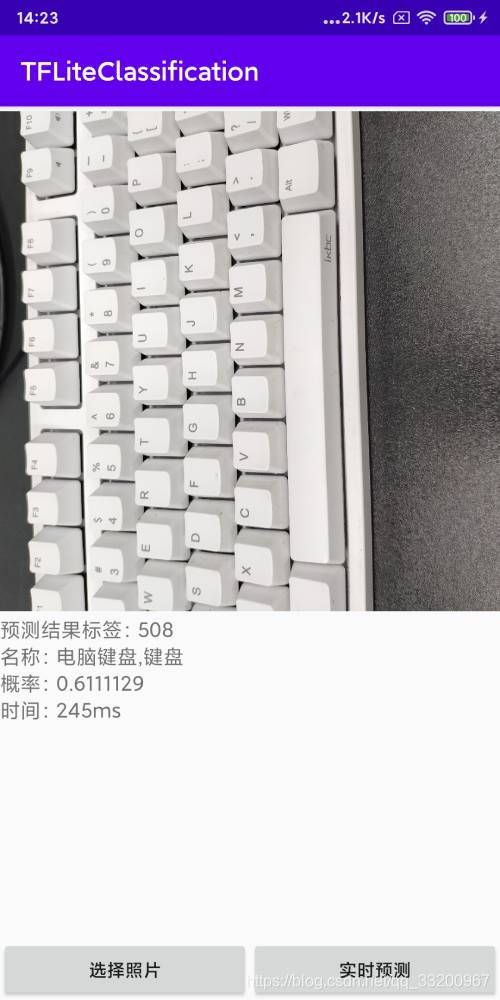
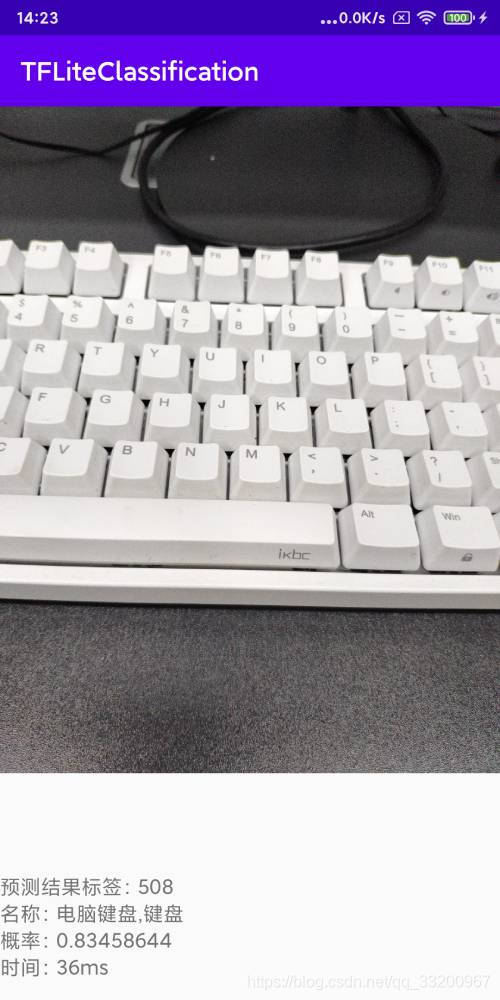
Real-time Prediction Effect
Image Selection Recognition:
Real-time Camera Recognition:
For more details, refer to the complete source code: https://github.com/yeyupiaoling/ClassificationForAndroid/tree/master/TFLiteClassification