I believe most students, like me, use the Windows system. However, as developers, Linux commands are frequently needed. In the past, we used virtual machines to install Linux, but if the computer has low configuration, it would basically freeze. Since Windows 10, we no longer need to go through that trouble because we can directly install a subsystem on Windows, which is Ubuntu.
First, we need to enable the Windows feature:
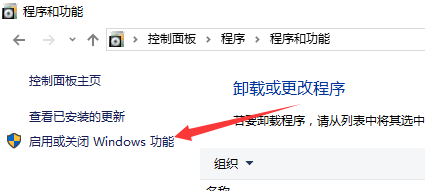
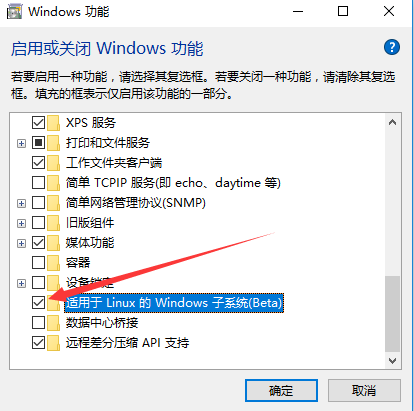
Check the box here:
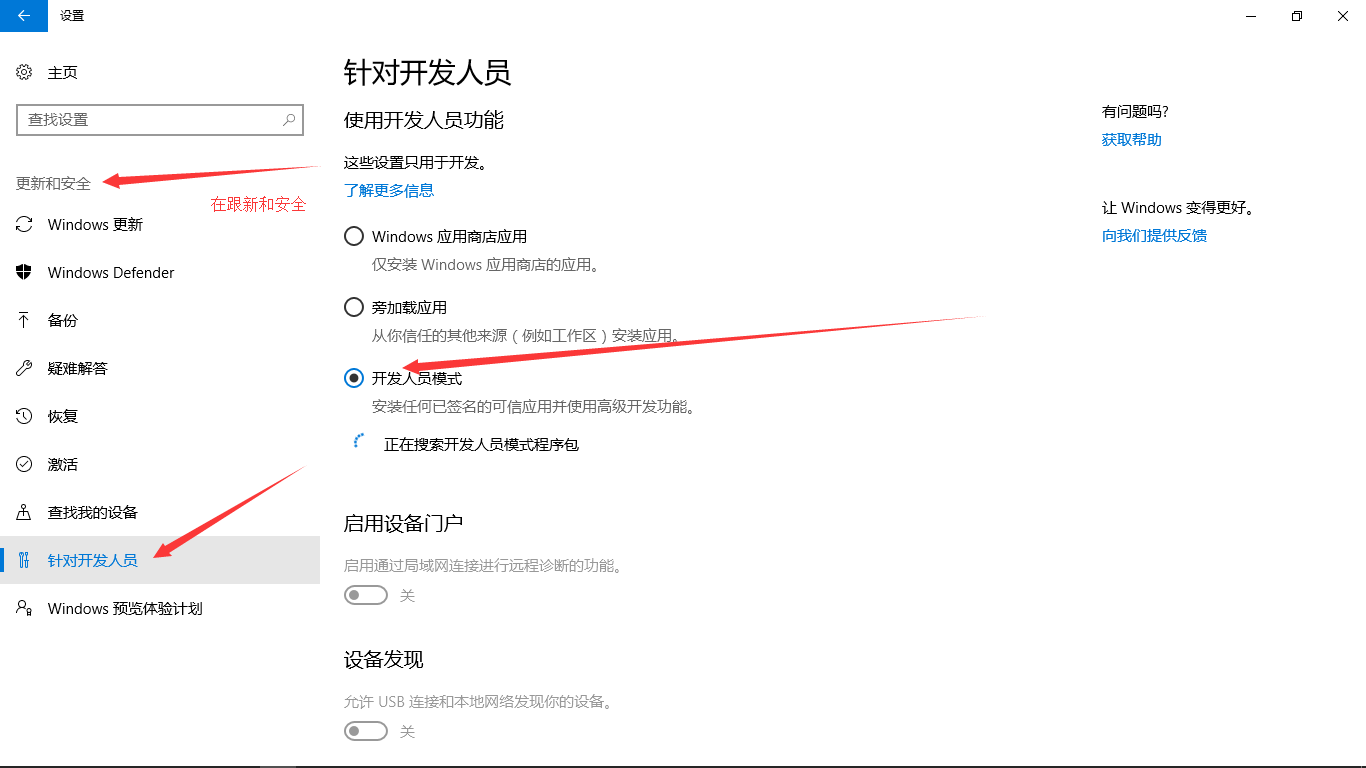
Then, open Settings -> Update & Security -> For Developers, select Developer mode -> Confirm to start it:
The author introduces two installation methods: the first is searching and obtaining from the Microsoft Store, and the second is installing using commands in PowerShell.
First method: Obtain from the Microsoft Store
First, open the Microsoft Store. If there is a Store icon on the Start menu, you can directly click to launch it:
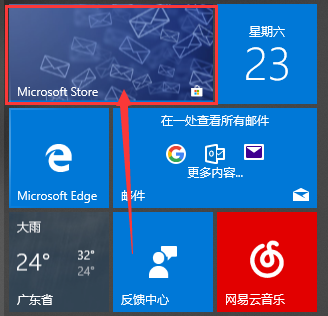
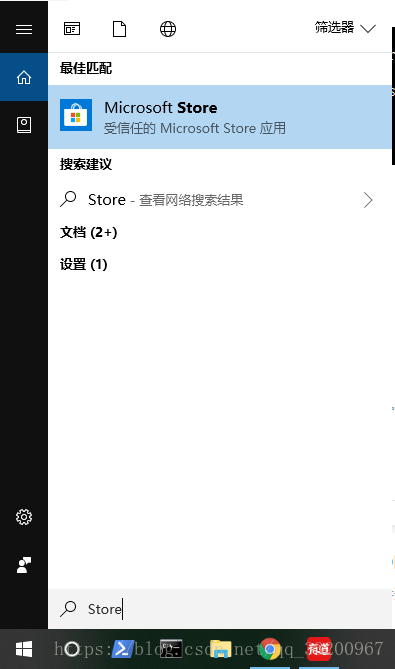
If not, you can search for “Store” directly:
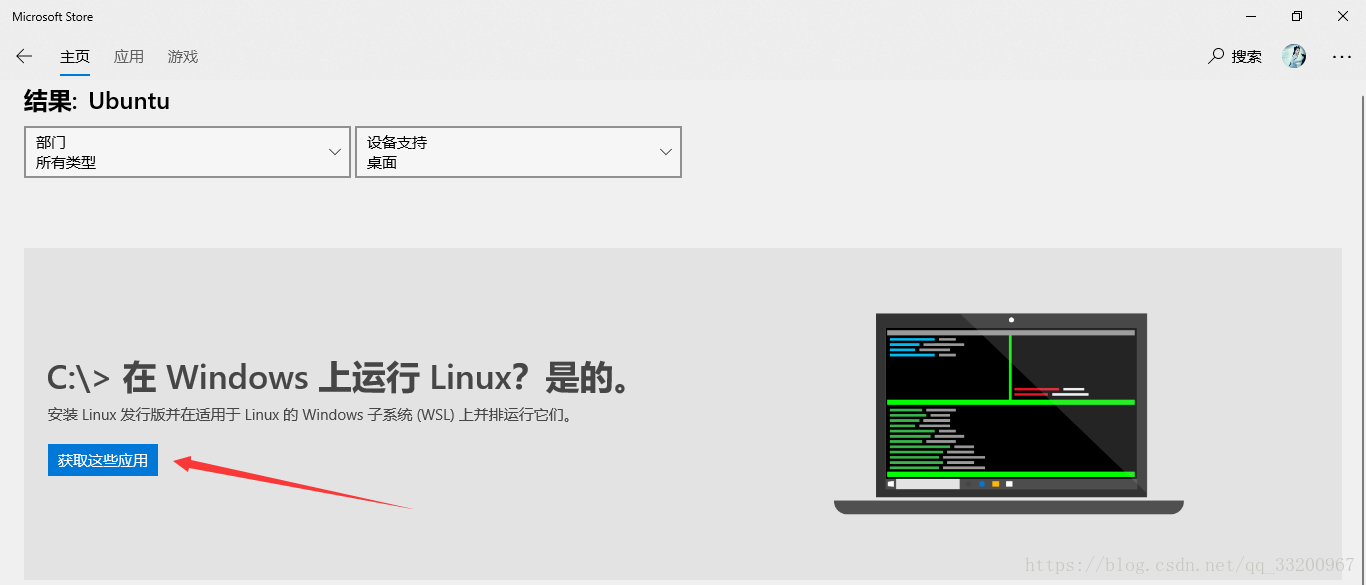
Then, search for “Ubuntu” in the Store. You can get the following results. Click “Get” to obtain these applications and proceed to the next page:
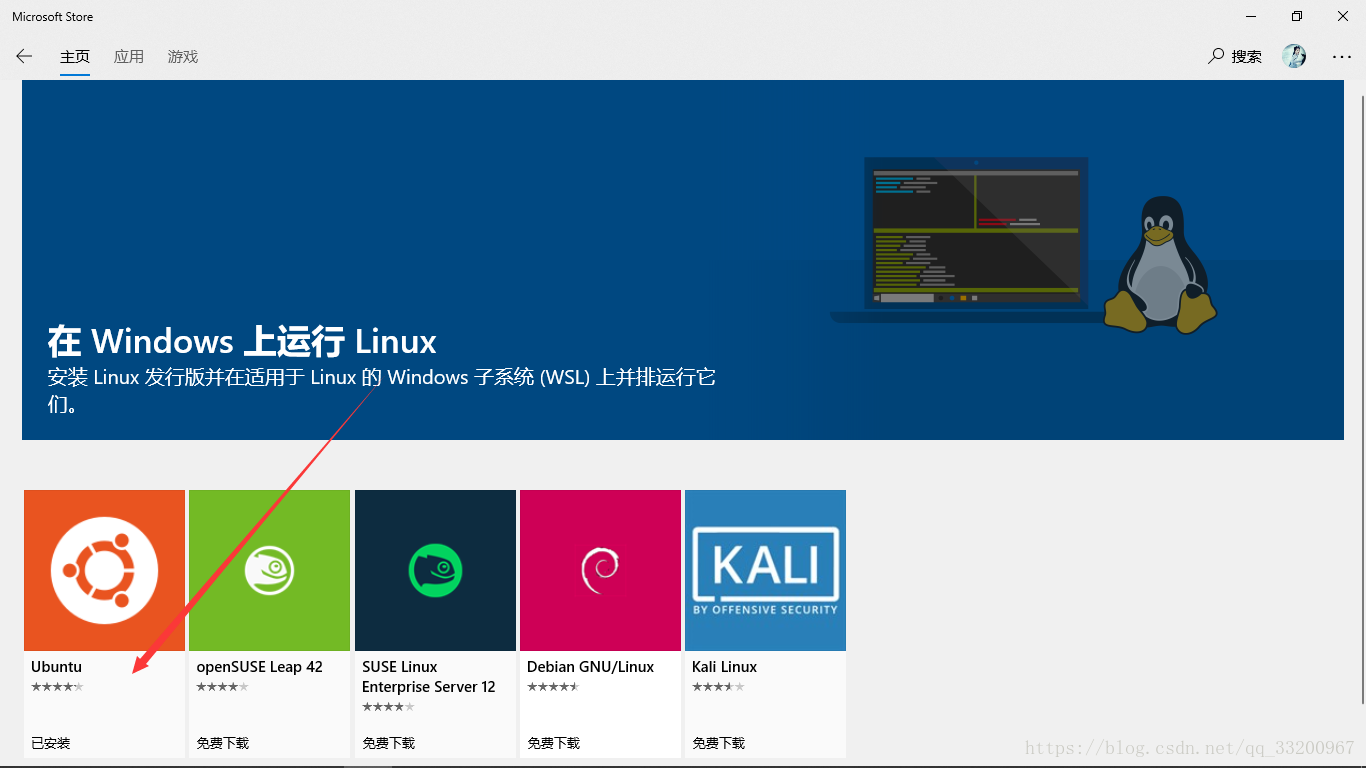
Then select “Ubuntu” and click to enter. Since the author has already installed it, it shows “Installed” here. If not installed, it should show “Free Download”. Then click to get and install:
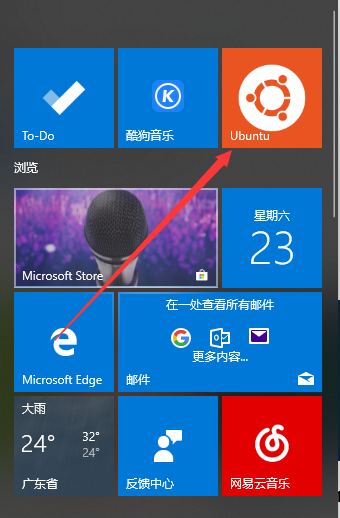
After successful installation, there will be an Ubuntu icon. You can pin it to the Start screen like other applications. Click to launch it to open the Ubuntu command terminal. Initial installation also requires setting a username and password. This operation is referenced in the configuration section below:
Now introduce the second installation method:
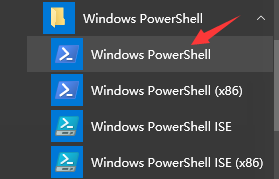
Open PowerShell:
To install Linux, enter lxrun /install in PowerShell:
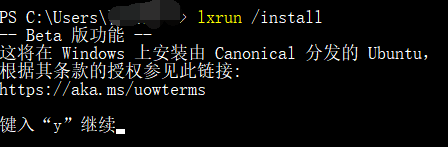
Type “y” to start downloading. This is a long wait. Although it’s only about 180MB, the author will take a nap first:

After the download is complete, the following interface will appear. Press “y” to continue:
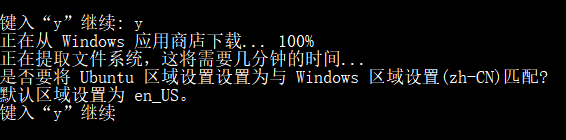
This interface may take some time, which is normal. Do not worry:
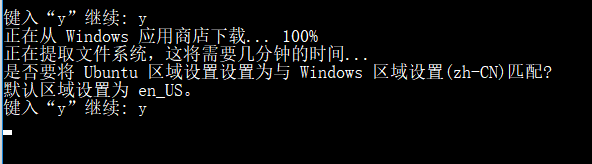
Setting the Ubuntu username:
Enter the Ubuntu username:

Enter the password:

Confirm the password:

Finally, the installation is complete:
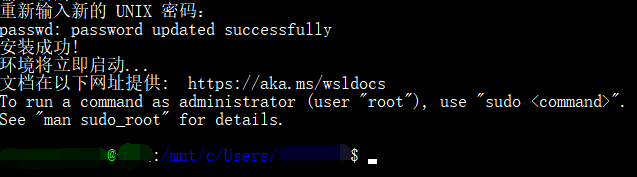
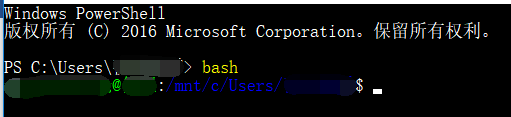
After installation, in the future, when you open PowerShell, you can enter bash to enter the Ubuntu command environment:
Open the root directory and check. Do you see familiar directories? Also, we know that all drives are mounted under /mnt:

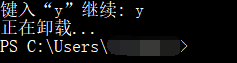
If you want to uninstall the Ubuntu subsystem, you can enter lxrun /uninstall /full in PowerShell. Remember, this is not in the Linux command line:
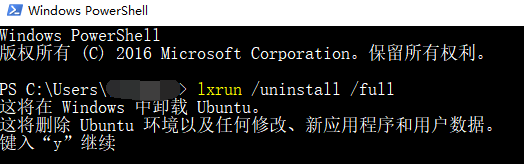
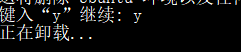
Uninstallation completed:
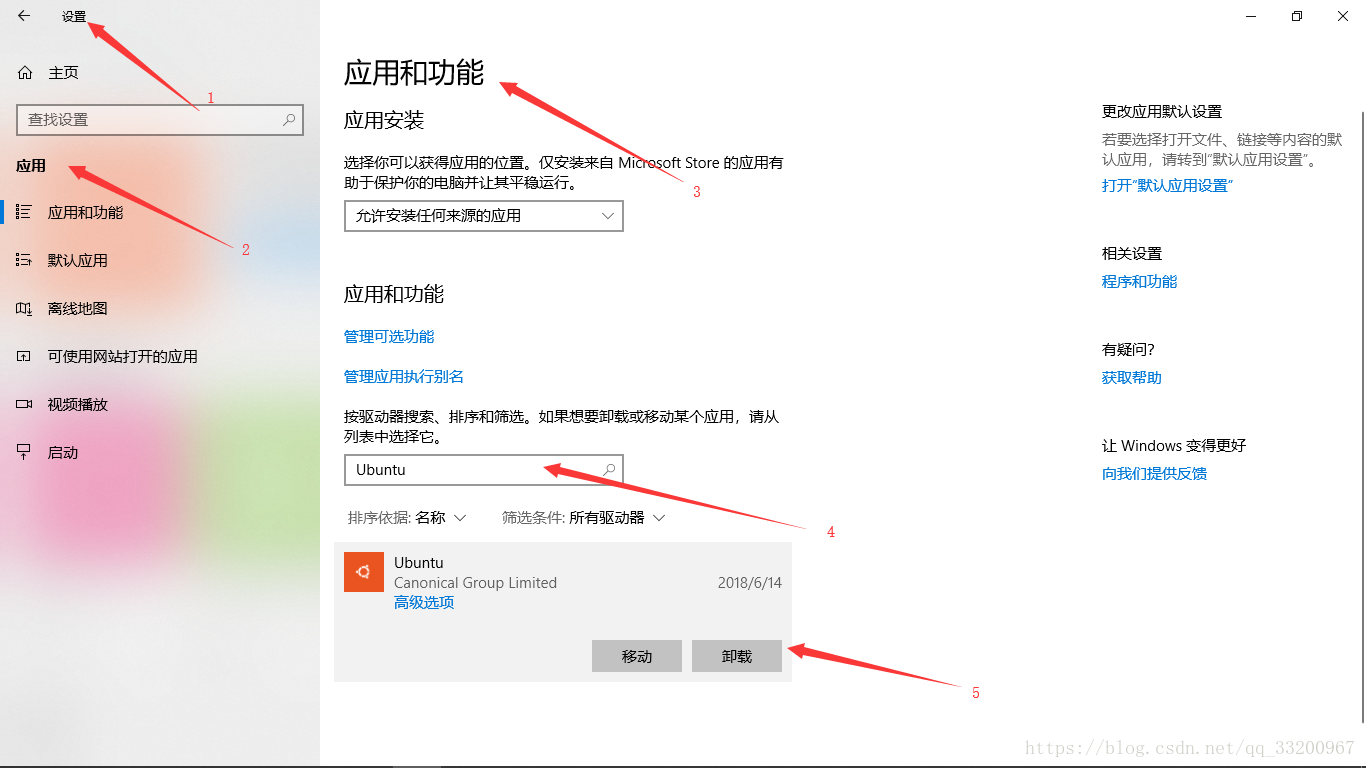
Alternatively, you can uninstall it in the application settings: