Previously, I was a big fan of debugging with real devices because I found it more convenient. However, this changed when I discovered that my phone couldn’t print Log.d() debug logs. Since then, I’ve frequently used emulators. Two additional reasons are: my phone doesn’t support fast boot, and my computer has relatively low specs, making emulators too memory-intensive.
Let’s write a simple application with the following code:
public class MainActivity extends AppCompatActivity {
    @Override
    protected void onCreate(Bundle savedInstanceState) {
        super.onCreate(savedInstanceState);
        setContentView(R.layout.activity_main);
        Log.d("调试日志","你好");
        Log.e("错误日志","你好");
    }
}
This app simply outputs a debug log and an error log, but their visibility differs between real devices and emulators.
Testing on a Real Device
First, using a real device:
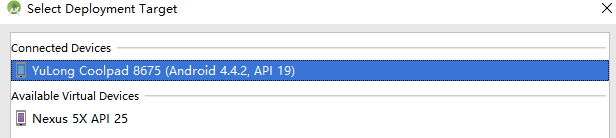
Only the error log was visible, while the debug log was missing.

Testing on an Emulator
Then, using an emulator:
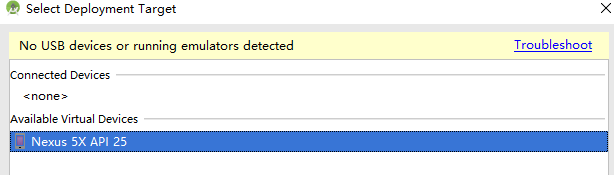
All logs were output correctly.

Root Cause
During debugging, missing logs can be frustrating. After researching, I found that some manufacturers suppress lower-priority logs by default, which is why the debug log was missing on the real device.
Log Util Class
To handle this, I created a reusable Log utility class for easier management:
import android.util.Log;

/**
 * Log output utility class
 * Created by 15696 on 2017/12/9.
 */

public class LogUtil {
    private String TAG;
    private boolean isRelease = false;
    private boolean isDebug;

    public LogUtil(Class<?> c, boolean isDebug) {
        this.TAG = c.getName();
        this.isDebug = isDebug;
    }

    public void d(String msg) {
        if (!isRelease && isDebug) {
            Log.d(TAG, "--------->" + msg);
        }
    }

    public void i(String msg) {
        if (!isRelease && isDebug) {
            Log.i(TAG, "--------->" + msg);
        }
    }

    public void w(String msg) {
        if (!isRelease && isDebug) {
            Log.w(TAG, "--------->" + msg);
        }
    }

    public void e(String msg) {
        if (!isRelease && isDebug) {
            Log.e(TAG, "--------->" + msg);
        }
    }
}
Best Practices
I’d like to emphasize: Always use Android’s Log class for debugging instead of System.out.println() or System.err.println(). Logs are hierarchical and filterable, which simplifies capturing logs.
Adjusting Log Levels (Coolpad Phones)
To modify log levels on酷派 (Coolpad) devices:
1. Enter *20121220# in the dialer to access the Engineering Mode.
2. Select Log Output Level.
3. Choose Java Log Level.
4. Set the minimum log level to display.
This ensures you capture the necessary logs during development.